
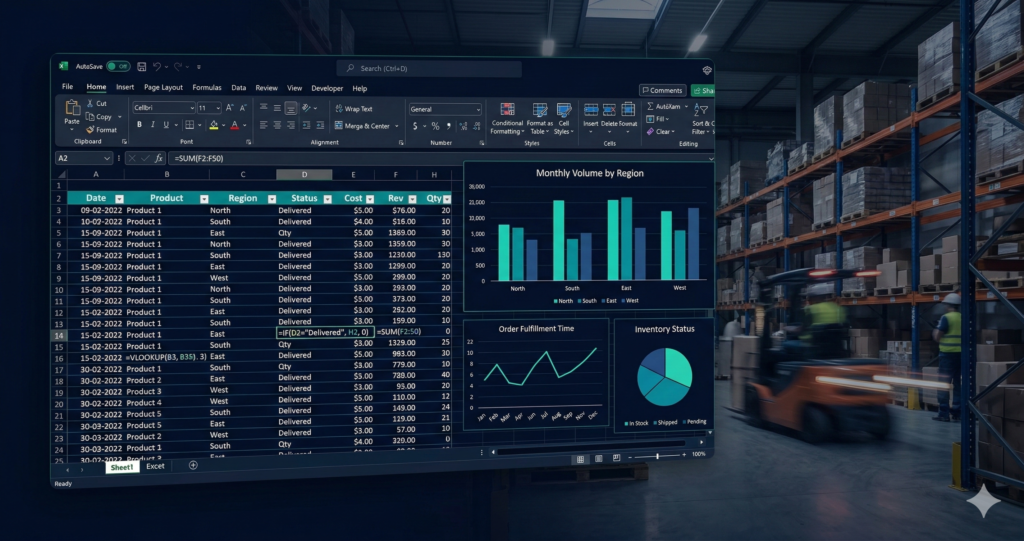
TL;DR — Bottom Line Up Front
What this covers: The Excel functions that actually matter in supply chain and operations work — data cleaning, lookups, conditional aggregation, dynamic arrays, and pivot tables — with real examples from DC and logistics workflows, not classroom exercises.
Who it’s for: Operations managers, supply chain analysts, BI analysts working with WMS and TMS exports, and anyone making the move from the floor into a data role who needs to close the gap between raw exports and actual analysis.
Excel supply chain analysis is where real operational decisions get made. Not in the fancy BI dashboards — in the spreadsheet open on a supervisor’s second monitor at 6 AM, pulling numbers out of a WMS export and turning them into something actionable before the morning standup. Mastering essential Excel functions has been one of the most consistent advantages I’ve carried across every job throughout my career. Whether you’re an Excel operations manager running shift reports, an analyst building carrier scorecards, or someone moving into a data role from the floor, Excel is always there — and the people who really know it have a consistent edge over the people who sort of know it.
This isn’t a beginner’s tutorial. It’s a working guide built around the functions that show up in real analyst and manager workflows, not classroom exercises. If you’re pulling exports from a WMS or TMS, building staffing calculators, tracking intraday KPIs, or trying to make a Power BI export actually look the way you want it, this is for you. This guide covers the essential Excel functions used in real management and analyst workflows — with a particular focus on Excel for supply chain and logistics environments where messy data exports are just part of the job.
Skim by category. Bookmark it. Come back when you need it.
How to Use This Excel Supply Chain Analysis Guide
This guide is for BI analysts, data analysts, FP&A professionals, supply chain and operations managers, and anyone trying to move into an analyst role and strengthen the fundamentals that actually matter on the job. Excel logistics analytics starts here — with the functions that turn raw WMS and TMS exports into something you can actually use. If you want to understand where Excel fits in the broader analytics career landscape, check out my breakdown of data scientist vs. analyst vs. engineer roles. Excel proficiency shows up across almost all of them.
The guide is organized by function category, with data cleaning first, then lookups, aggregation, logic, dates, text, dynamic arrays, and pivot tables. Each section includes actual formulas, realistic examples, and a note on when you’d actually reach for that function at work. Microsoft’s complete Excel function reference is a useful companion if you want to go deeper into the syntax of any specific function.
At the end, three real-world scenarios show how these functions work together in complete workflows. That’s where it clicks.
One flag before diving in: the dynamic arrays section (FILTER, UNIQUE, SORT) requires Excel 365 or Excel 2021+. If you’re on an older enterprise version, which is common in large ops environments, those won’t be available. Everything else in this guide works on Excel 2016 and up.
Data Cleaning Functions: Get Your Data Usable First
Before any analysis happens, the data usually needs work. WMS exports, TMS reports, and ERP pulls all come out messy. Wrong formatting, extra spaces, and text that should be numbers. These functions handle that.
TRIM
Removes leading, trailing, and extra internal spaces from text.
=TRIM(A2)
Sounds minor. It’s not. When you’re doing a VLOOKUP or XLOOKUP and getting errors that make no sense, there’s a good chance spaces are the culprit. SKU codes, carrier names, employee IDs, and any field that is copied or exported from another system will contain invisible spaces. TRIM cleans them.
Common gotcha: TRIM removes extra spaces between words but won’t remove non-breaking spaces (ASCII 160). If TRIM isn’t fixing it, pair it with SUBSTITUTE:
=TRIM(SUBSTITUTE(A2, CHAR(160), " "))
CLEAN
Removes non-printable characters and all junk characters that appear when data moves between systems.
=CLEAN(A2)
Use TRIM and CLEAN together on exports from legacy systems or anything that’s been through an EDI translation. They’re a standard first step before any meaningful analysis.
=TRIM(CLEAN(A2))
SUBSTITUTE
Replaces specific text within a string. More targeted than REPLACE, you tell it exactly what to swap out.
=SUBSTITUTE(A2, "SKU-", "")
UPPER / LOWER / PROPER
Standardizes text case. Critical for joins and lookups: “WEST”, “West”, and “west” are three different values as far as Excel is concerned.
=UPPER(A2)
=LOWER(A2)
=PROPER(A2)
VALUE
Converts text that looks like a number into an actual number.
=VALUE(A2)
Lookup and Relationship Functions: Connect Tables Like a Pro
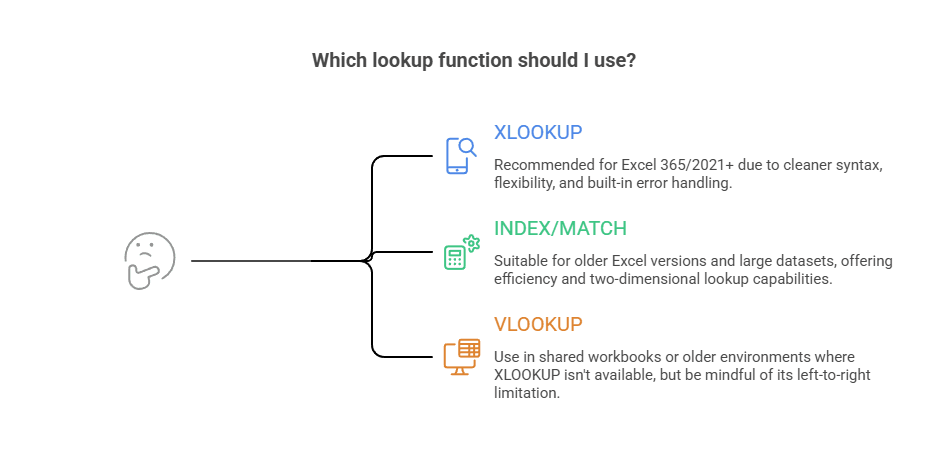
This is where the real analytical power lives. Lookups let you connect tables, pull attributes from a reference sheet, join a fact table to a dimension table, and enrich one dataset with fields from another. It’s essentially what a SQL JOIN does, but in Excel. For a detailed comparison of all three approaches below, Exceljet’s XLOOKUP vs. INDEX/MATCH breakdown is one of the clearest available.
XLOOKUP: The Modern Default
=XLOOKUP(A2, Products[SKU], Products[Description], "Not Found")
INDEX + MATCH: Still Worth Knowing
=INDEX(Products[Description], MATCH(A2, Products[SKU], 0))
VLOOKUP — Legacy, But Not Gone
=VLOOKUP(A2, ProductTable, 3, FALSE)
| Feature | VLOOKUP | INDEX/MATCH | XLOOKUP |
|---|---|---|---|
| Left-direction lookup | No | Yes | Yes |
| Multiple return columns | No | No | Yes |
| Built-in error handling | No | No | Yes |
| Excel version | 2007+ | 2007+ | 365/2021+ |
| Complexity | Low | Medium | Low |
Aggregation and Conditional Functions: Slice Numbers by Business Logic
SUMIFS and COUNTIFS are arguably the most used functions in Excel operations analytics. If you’re calculating any KPI that involves conditions, units by shift, on-time percentage by carrier, or headcount by function, you’re using these. This is the core of Excel supply chain analysis — turning transactional data into operational metrics.
SUMIFS
=SUMIFS(Roster[Headcount], Roster[Function], "Inbound", Roster[Shift], "Day")
COUNTIFS
=COUNTIFS(Orders[Carrier], "Carrier A", Orders[Status], "Late")
Logical Functions: Turn Business Rules into Formulas
IF / IFS
=IF(C2>=95, "On Target", IF(C2>=85, "Monitor", "Escalate"))
=IFS(C2>=95, "Green", C2>=85, "Yellow", C2>=70, "Red", TRUE, "Critical")
Date and Time Functions: Work with Schedules and SLAs
NETWORKDAYS
=NETWORKDAYS(B2, C2, Holidays)
Dynamic Arrays and Modern Analysis Functions (Excel 365+)
FILTER
=FILTER(Orders, Orders[Priority]="High", "No high priority orders")
UNIQUE / SORT
=SORT(UNIQUE(B2:B100))
Excel for Supply Chain Analytics: Real Analyst Scenarios
This is where Excel logistics analytics becomes visible in practice. These scenarios show how the individual functions above combine into complete Excel supply chain analysis workflows — the kind that actually run on a DC floor, not in a training deck.
Scenario 3: Intraday Operations Report with Rolling Projection
This is the one that actually changes how you manage a shift — updated three times a day, auto-calculating KPIs and projecting where you’ll finish based on current pace. For an Excel operations manager running a high-volume DC, this replaces manual arithmetic entirely.
=(TotalUnitsSoFar/ElapsedHours)*TotalShiftHours
Frequently Asked Questions: Excel Supply Chain Analysis
What Excel functions do supply chain analysts use most?
XLOOKUP, SUMIFS, COUNTIFS, and TRIM/CLEAN are the workhorses of Excel supply chain analysis. XLOOKUP handles joins between tables — connecting WMS exports to master data, matching order IDs to product families. SUMIFS and COUNTIFS drive conditional KPI calculations like units by shift and on-time percentage by carrier. TRIM and CLEAN are the unglamorous foundation: without them, the other functions return errors on data that looks fine but isn’t.
What is the difference between VLOOKUP, INDEX/MATCH, and XLOOKUP?
VLOOKUP only looks right, meaning the return column must be to the right of the lookup column. INDEX/MATCH removes that restriction and handles left-direction lookups with more flexibility. XLOOKUP is the modern replacement for both: cleaner syntax, built-in error handling, and the ability to return multiple columns. For anyone doing Excel for supply chain analytics today, XLOOKUP is the default. INDEX/MATCH is still worth knowing for legacy environments.
How do I use Excel for supply chain analysis without a BI tool?
Start with clean data: TRIM and CLEAN on every exported text field. Connect tables with XLOOKUP instead of manual copy-paste. Build KPI calculations with SUMIFS and COUNTIFS. Use pivot tables for slicing by shift, carrier, or SKU. For rolling projections, a simple formula like =(UnitsSoFar/ElapsedHours)*TotalHours gives you an intraday finish estimate. That stack handles the vast majority of real operational reporting without needing Power BI or Tableau.
Is Excel still worth learning if I want to work in supply chain analytics?
Yes — and it’s not close. Excel is the universal language of operations. WMS exports land in Excel. Carrier scorecards live in Excel. Labor plans get built in Excel. Even companies with mature BI stacks still route operational data through Excel at some point in the workflow. Learning Excel for supply chain analytics isn’t a stepping stone you outgrow. It’s a permanent skill that compounds with everything else you add.
What’s the fastest way to improve Excel skills for supply chain work?
Use real data you already care about. Pull your WMS daily summary or staffing roster and rebuild it using the functions in this guide. The functions only stick when you learn them on a problem that matters. Start with TRIM/CLEAN on the raw export, add XLOOKUP to connect it to a reference table, then build one SUMIFS KPI. That sequence alone covers 80% of real Excel supply chain analysis work.
Next Steps: How to Get Better at This
The essential Excel functions in this guide will cover the vast majority of real-world scenarios in Excel supply chain analysis. The fastest way to learn them is to use them on data you already care about. Your WMS daily summary or staffing roster is where the understanding actually sets in.
For deeper dives, Exceljet is the most consistently accurate and practical Excel reference available. If you’re building toward a BI or analyst role in supply chain or operations, Excel is the foundation. For more on how supply chain data flows through systems, the Global Supply Chain Transportation Modes guide is a solid next read. And for a real-world look at enterprise analytics infrastructure, see how IBM builds its analytics and BI stack using its own tools.
— Brad
Curious about which data role is the right fit for you? Check out Comparing Data Jobs: Data Scientists, Analysts, Engineers & More. And if you want to see how Lean principles connect to operational data work, From the Floor to the Dashboard: Lean Six Sigma for BI and Continuous Improvement picks up where this post leaves off.